The Tablet :) 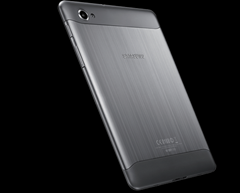 | I got mine for $645.50 from Amazon Market Vendor “Transformersandgsmphones” … it shipped very fast and was a brand new unit. Caveat: From what I understand, units purchased through grey market like this will be difficult if not impossible to submit for any warranty claim. |
AmazonBasics Stylus  | - $11 from Amazon
- Highly reviewed
- Soft tip seems bulbous at first but in actual tablet usage turns out to be very appropriate. Still, I think I would really like the pressure sensitive line thickness capability of the Note models’ smart pen.
|
SanDisk 64GB microSD card
 | - class 6 but speedy enough
- it actually works
- 7.7 formats it as fat32/vfat by default… there are some tools for getting it mounted as NTFS, IFF you think you need >4GB files… I found the tools not working right away and think I’ll be fine on fat32.
- Got mine for $119 @ Amazon but that price is dropping almost daily! hold out as long as you can!
|
RAM-Mounts Cradle (RAM-HOL-TAB-SMU)

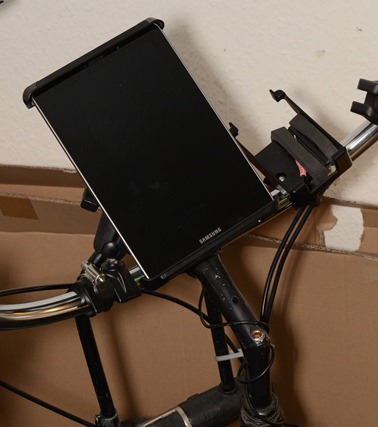
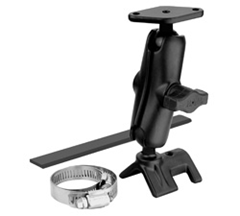 | - I love RAM-Mounts and this is the absolute *PERFECT* fit for the GTab 7.7 in scenarios like bicycle handlebars.
- The middle sized cup is a very satisfying fit for the GTab 7.7.
- It will work great with a rubber case or naked. The grip spring is very strong. I bounced along a VERY bumpy 8 hour bike ride recently and there is no way the tablet is coming loose.
- $28 from GPSCity
- For bike handlebars I recommend pairing the cradle with this RAM kit comprised of a “strap rail base”, medium arm and diamond plate.
 |
Sea to Summit Waterproof TPU Case  | - Make sure you get the LARGE version… it’s a nice fit for the tab 7.7
- I’m using it in tandem with the RAM-Mount cradle above and it does fit. The extra material at the top is kind of crammed in there and there’s a bit of bowing in the plastic surface.. but the touch screen works fine.
- Honestly, depending on how often you plan on needing that sort of thing you might just get by with a new heavy Ziploc bag each ride… hi-ho landfill! :)
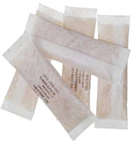
- I went ahead and got some Desiccant packs while I was at it just in case… you may have some in an old shoe box or something
- $20 @ Amazon
|
| Samsung OEM “Book Cover” Case | - A bit pricey around $40 street and often out of stock
- I definitely like how this fits into day-to-day usage
- it’s thin, light, hard shell, unbreakable kind of plastic
- tab snaps into stiffer corners so it won’t fall out
- there is some corner drop protection… not extensive rubber pads, but some extra shock absorption plastic there on the corners.
- there is rubber on two edges so theoretically you could stand it up in landscape mode but I have found that the angle where it will stand up without sliding back down flat is not really conducive to real usage… one would have to rig something behind it to block it from sliding.
|
“OTG” USB Host Adapter  | - OTG = On The Go… apparently it’s a standard that allows for swapping the master-slave role … not sure why that helps since we’d want the tab to be the host in all scenarios I can think of… flash drive, hard drive, keyboard, etc.
- $6.70 @ Amazon
- See USB Mass Storage Watcher in the apps section below.
- No surprise, the tab couldn’t power a 2.5” USB HDD.
|
USB Charge Adapter (aka “Filter Plug”) 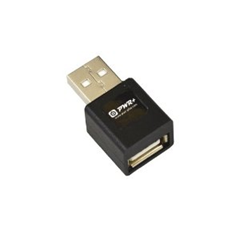 | - This little bugger takes some explaining… the nutshell is that some of these devices like the gtab are checking for a special USB pin configuration to take a charge from a USB connection.
- This is an example thread to get some more background… including self hacked cables.
- The other thing to be aware of is that the stock AC charger pumps 2.1Amps… so if you go with another source (e.g. external batt), then you want to shoot for that higher amperage to ensure the fastest charging… see “External Battery” section below,several units are addressing this requirement now.
- Got mine on Amazon for $5.90 + $5.50 shipping (gip)
- They go for super cheap on eBay and DealExtreme
|
External Battery PowerTraveler PowerMonkey eXtreme | - I wound up getting a yellow model for $180… it’s smaller than I thought it would be (which is great). Very light and portable. I like the overall package even if it is a little too pricey. I honestly haven’t used it much at all since my whole paradigm shifted once we left Germany and moved to Seattle. Hopefully this will all swing back into normalcy once we get moved into our new money pit and can hit the trails in a camper with the kiddos.
- review
- $190
- 9000Mah
- 2.1A USB with a pigtail
- 242 grams
- AUTO-OFF
- completely WATERPROOF
- comes with a CASE, lots of tips & outlet adapters
- does NOT come with the required USB adapter for the gtabs; see USB charge adapter above. PowerTraveler does sell their own version of this adapter.
Alternatives:
|
Bluetooth Keyboards Think Outside/Sierra Stowaway AND AmazonBasics model 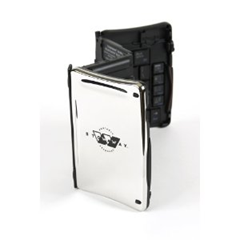  | - Foldup styles:
- Long since discontinued, the Think Outside is slick, fragile, but very slick… the key feel is great and the outside snaps shut into a cool shiny, chrome case… they’re experiencing a funny price spike circa Q1 2012, going for $250 on Amazon is crazy… this thing probably retailed for $100… I got mine for $65 on eBay a couple years back… there is another Stowaway model - iGo Ultra Slim that only folds once and seems practical as well.
- Nomad Mobile has a good rendition of another common style single fold … these go for cheaper elsewhere.
- Non-foldable:
- The Apple Bluetooth Keyboard is the gold standard really... razor thin, aluminum, awesome feel to the keys.
- one catch, no friggin delete key... there's a backspace but no "forward" delete, you have to hit FN-Backspace to get forward delete.
- also, no true numpad but that's sort of what you want in a portable anyway.
- I noticed Amazon has a nice knockoff of the Apple style now.
- It has a delete key and there's a customer image that shows it's actually a tad shorter than the Apple.
- Logitech has a polished looking tablet keyboard option with integrated case/stand now too:
 |
Media / Charging Dock  | -
Has HDMI but it’s annoyingly the mini version invariably requiring more hanging adapter bulk :( -
Also has headphone audio out if you need it. -
The usual plastic quality build, basically works but feels kind of wobbly when you insert. -
I’d give this a mild recommendation… didn’t see anything else as a worthy challenger at the time. |
Zephyr HxM - Bluetooth Heart Rate Monitor  | - You can also go with a Nike+ wireless protocol, Polar makes a Nike+.
- or there’s the more open ANT+ protocol, for which Garmin has a couple ANT+ monitors and are the cheapest… ANT+ sounds reliable but,
- I went with Bluetooth to avoid the need for an ANT+ dongle… some phones are starting to include this radio natively.
- Bluetooth options are slim, the Zephyr seemed to review better than the Polar Bluetooth.
- Amazon wasn’t stocked so I ordered from Endomondo for $75 bones (ouchy)
- Pairing worked as instructed, showed up right away in the Endomondo sports tracking app and reported numbers similar to my arm band blood pressure monitor.
-
Make sure it’s fully charged, plugged to the strap, the strap pads have to be pretty wet & you have to put it on -
Do normal Android bluetooth pairing; code: 1234 -
Then go into the Endomondo app > Settings > Accessory Settings > Connect To Sensors > Scan |
Mujjo Capacitive Gloves 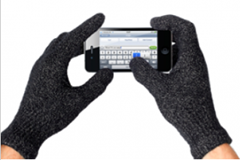 | - Couldn’t resist springing for these while I was at the Endomondo store – $35 … kinda pricey
- They work… Angry Birds is playable, I wouldn’t want to type with them though… I got the Male M/L size… I would say my hands are medium and there’s just a bit of extra length to the fingers… with normal gloves I wouldn’t care but it obviously matters for touch screen precision… if you have small hands, consider the women’s size… they are very stretchy material.
|
| Not Recommended |
Motorola S10-HD Bluetooth Stereo Headphones with Microphone  | - $60 @ Amazon
- too expensive in my opinion
- the headphone sound is “OK”
- the microphone sound quality is pretty bad
- they’re really tight on my ears with my fat head and the design just makes them that way with no relief … I basically hate these and wish I never got them at this point… anybody want a deal on a completely unused pair?
- all the buttons you’d want… volume and pause/play, fwd/rev and probably a call hang-up
|
Case Logic LNEO-7 7-Inch Sleeve  | - Update 2012-07-4: I wound up going with the OEM Samsung “Book Cover” case and haven’t looked back. See those comments above.
- It’s “OK”… fits pretty well…just a little snug around the corners but not bad
- no room for much of anything in the cramped pouch… the USB cable and a pigtail would be about max.
- Can’t lose for $14.50 @ Amazon
|
Armor Suit - Screen Protector
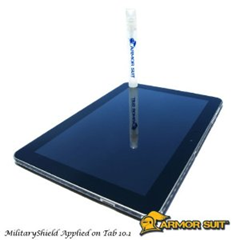 | - This one looked good to me because it has a liquid approach to ironing out the bubbles … update 2012-07-04: the spray bottle solution was a good trick, I still got dust in there but that’s hard to avoid.
- I paid $17 + shipping @ Amazon and it’s already down to $10… feeling a bit gipped :)
- After I got the Samsung Book Cover case (see above), I ditched the screen protector, feeling that it took away from the display a bit and the case is plenty of scratch protection during transit which was my personal biggest concern… this is definitely personal preference area.
|
| Wish List |
Keyboard Stands & Charging Docks Incase Origami Workstation for Apple Wireless Keyboard  | - Haven’t found anything perfect yet… everything is missing something... at the moment, a makeshift cardboard stand with the charge/usb cables is working better than I expected.
- Samsung’s keyboard dock - doesn’t have HDMI port
- Also just considering a case/stand for my Apple Bluetooth keyboard – Incase Origami Workstation: demos ok, not great
|